

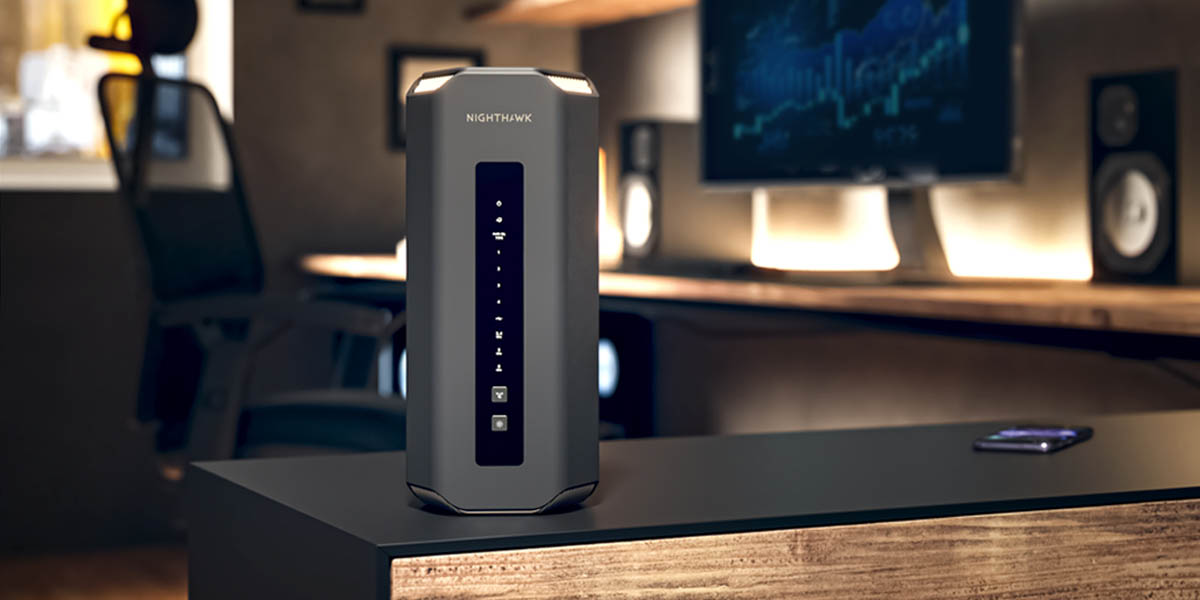
A Netgear router is the heart of your home network, quietly handling every connection from your phone and laptop to your smart TV and security cameras. When it works, you barely notice it; when it misbehaves, everything grinds to a halt. Whether you are setting up a new router, securing your network, or chasing down a connection problem, the manual is the resource that turns confusion into clear, confident action.
Why the Router Manual Is Essential
A Netgear manual is far more than a quick-start card. It explains the full layout of ports and buttons, the meaning of every status LED, the structure of the admin interface, and the advanced settings that let you tailor the network to your needs. Modern routers include features like guest networks, parental controls, Quality of Service prioritization, and band steering — capabilities that go unused without guidance. The manual is where you learn what these features do and how to enable them safely.
Just as important, the manual decodes the router’s behavior when something goes wrong. A flashing internet light, a router that keeps rebooting, or devices that cannot connect each have documented causes and solutions. Rather than guessing, you can follow steps written specifically for your model.
Finding Your Netgear Model Number
Netgear produces many product lines, including the Nighthawk performance series, the Orbi mesh systems, and the standard Wi-Fi router range. The model number — something like “RAX50” or “RBK752” — appears on a label on the bottom or back of the unit, along with the default login details and network name. Matching the model exactly is important because settings and features vary significantly across lines.
If the label is worn, the admin interface displays the model and firmware version once you log in. With the correct model number, finding documentation is quick. Browse a full library of Netgear router manuals to open the exact guide for your device.
Setting Up a Netgear Router
A smooth setup follows the order the manual prescribes. You connect the router to your modem, power both on in the correct sequence, and wait for the internet light to stabilize before configuring anything. Netgear routers are usually set up through the Nighthawk or Orbi app, or through a web browser by visiting the router’s admin address. The manual explains both methods and walks through creating your network name and password.
For mesh systems like Orbi, the manual covers placing satellites at the right distance for full coverage and confirming a strong connection between units. Proper placement makes the difference between seamless whole-home coverage and frustrating dead zones.
Securing Your Network
Security is one of the most important reasons to read the manual, and one of the most neglected. The manual explains how to change the default admin password — a critical step, since default credentials are widely known — and how to choose strong Wi-Fi encryption such as WPA3 where supported. It also covers setting up a separate guest network to keep visitors off your main devices, and configuring automatic firmware updates so your router stays protected against newly discovered vulnerabilities.
Following these steps transforms a router from a potential weak point into a well-defended gateway. The manual makes each setting clear, so you do not have to guess which options actually improve your security.
Understanding Status Lights and Errors
Netgear routers communicate through colored LEDs, and interpreting them correctly saves enormous time. A solid white or green light usually means a healthy connection, while amber or red often indicates a problem with the internet link or a specific band. The manual provides a complete legend for your model, so a single glance tells you whether the issue is your router, your modem, or your internet provider.
When connections drop or speeds fall, the troubleshooting section guides you through a logical sequence: power-cycling in the right order, checking cable connections, verifying settings, and updating firmware. This structured approach resolves most issues without a call to support.
Maintaining a Healthy Network
A little maintenance keeps a network fast and reliable. The manual recommends keeping firmware current, restarting the router periodically, and positioning it in an open, central location away from interference. It also explains how to monitor connected devices, manage bandwidth for important activities like video calls, and adjust channels to avoid congestion from neighboring networks.
Keep Your Manual Handy
The best time to find your router manual is before the network goes down — because once it does, searching online becomes much harder. Bookmark the guide for your Netgear model now, while everything works, so any future issue becomes a quick reference. Keeping all your device manuals in one organized place makes troubleshooting effortless.
A free, brand-organized archive of router and device documentation is available at ManualMachine, where Netgear guides sit alongside thousands of others.## Getting the Best Wi-Fi Coverage
A common frustration with any router is weak signal in certain rooms, and the manual offers practical guidance. It explains where to place the router for the strongest coverage, how walls and appliances affect the signal, and how to adjust settings for a larger home. For mesh systems such as Orbi, it details how to position satellite units so they extend coverage without creating dead zones. The documentation also covers band selection, channel settings, and features that prioritize important traffic like video calls. Applying even a few of these tips can transform an unreliable connection into consistent, fast Wi-Fi throughout your home, getting the full performance your Netgear hardware is capable of delivering.
Final Thoughts
A Netgear router is the foundation of your connected home, and understanding it makes everything else work better. The manual guides setup, strengthens your security, decodes status lights, and walks you through troubleshooting step by step. Find your model number, download the matching guide, and keep it handy — your network will be faster, safer, and far more reliable.